How to Make an Unturned Dedicated Server (Windows + SteamCMD)
In this step-by-step guide, I’ll show you how to set up an Unturned Dedicated Server on Windows using SteamCMD.
SteamCMD is a free tool developed by Valve that makes creating and managing game servers simple and straightforward.
To make things easy, you can follow along in whichever way works best for you:
🎥 Watch the full video walkthrough
📖 Follow the detailed written guide below
Let’s get started and get your server up and running! 🎮
Step 1 – Download and install SteamCMD
Before we begin, we’ll need to install SteamCMD.
If you don’t already have it installed, you can download it from the official SteamCMD website.
Installation Steps:
Download the SteamCMD zip file.
Extract it to your preferred location (for example:
C:\SteamCMD).Open
steamcmd.exe.Allow it to update and download required files.
Once complete, type: quit

⚠️ Important:
Do NOT extract SteamCMD into a OneDrive folder. This can cause permission issues that may prevent your server from running correctly.
Step 2 – Download The Unturned Server Files
Now we’ll download the Unturned Dedicated Server files.
1️⃣ Open SteamCMD
Navigate to your SteamCMD folder and double-click:
2️⃣ Create a Server Folder
Before downloading, create a folder where you want your server installed.
Example (Desktop location):
Now inside SteamCMD, enter:
3️⃣ Login Anonymously
Type:
4️⃣ Download the Server Files
Now run:
When complete, you should see:
Then type:
SteamCMD will now close.
✅ At this point, the server files are successfully installed.
Step 3 – Obtain a Server Login Token
To make your Unturned server publicly visible, you need a Steam Game Server Login Token.
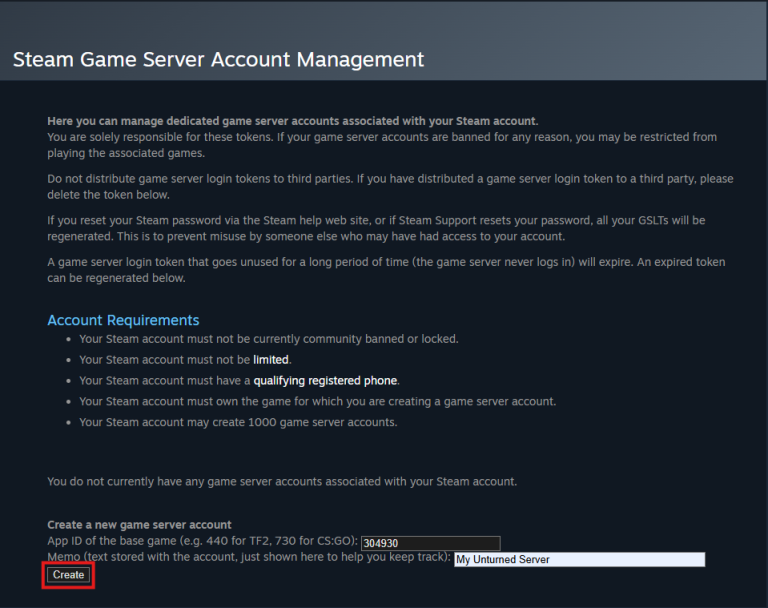
You can get one from Steam Game Server Account Management.
Steps:
1️⃣ Enter App ID:
2️⃣ Enter a Memo
Give it a name so you can identify it later.
Then Click “Create”
3️⃣ Copy Your Login Token
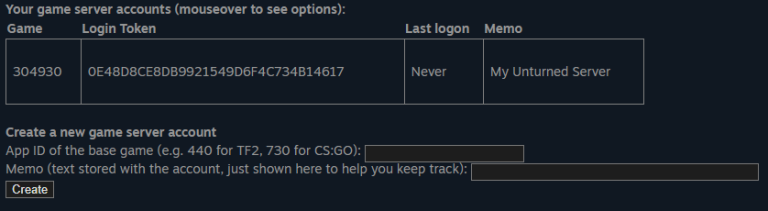
Save it somewhere safe (for example, a text file).
⚠️ Important: Never share your login token with anyone.
Step 4 – Basic Configuration
Before editing settings, we must launch the server once to generate default configuration files.
First-Time Launch
Inside your server folder, click:
This will generate the required config files.
🔧 Editing Commands.dat
Navigate to:
Open Commands.dat and adjust the settings:
map Russia
port 27015
password YourPassword
perspective both
mode normal
cheats on
maxplayers 70
owner YourSteamID
Save the file when finished.
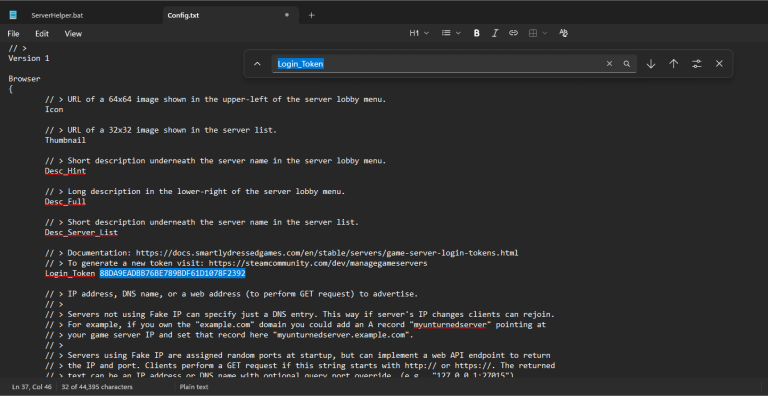
🔐 Adding Your Login Token
Now navigate to:
Find:
Add your token after it, separated by a space.
Example:
Save the file.
🌐 Networking Settings
By default, Unturned uses:
Protocol: UDP/TCP
⚠️ If running multiple servers, each must use a unique port.
Step 5 – First Time Start
We’re at the final stretch! 🎉
Before launching your server for the first time, there’s one important thing to check.
🌍 Port Forwarding (Required for External Players)
If you want players outside of your local network to join your server, you’ll need to configure port forwarding on your router.
You can follow this general port forwarding guide here:
https://www.noip.com/support/knowledgebase/general-port-forwarding-guide
⚠️ Before you begin, make sure you note the following:
Your Port uses UDP/TCP
You’ll need to forward ports correctly for everything to work properly.
If you’re only playing locally (same network), port forwarding is not required.
🚀 Starting the Server
Once port forwarding is complete:
1️⃣ Go back to the Unturned Folder
2️⃣ Click the bash file “ServerHelper.bat”
Your server will now begin launching.
🛡 Windows Defender Firewall Warning
The first time you launch the server, Windows Defender Firewall will likely display a security prompt.
⚠️ It is very important that you click “Allow Access.”
If you do not allow access, Windows will block incoming and outgoing connections, which will prevent other players from joining your server.
✅ Once the server finishes starting, you should be able to find it in the in-game browser
Congratulations — your Unturned dedicated server is now live! 🎮